Zenodo
If you’re preparing a manuscript for publication, chances are you need to cite a CCBR pipeline, tool, or other software. For a new project or analysis repository that doesn’t yet have a DOI, you’ll need to archive the repository in Zenodo and generate a DOI in order to cite it. Follow the instructions below and reach out if you have any questions!
Prepare GitHub Repository
The GitHub repository must be public and should include the following:
README.mdfile.LICENSE.mdfileCITATION.cfffile.- Documentation pages, such as via mkdocs, quarto, or pkgdown, with usage and contact information.
- Stable repository ready to be released to the public.
Link GitHub account to Zenodo
- Go to Zenodo.
- Select
usernamein the top right >>Profile. Select `GitHub``. - Click
Sync Now(top right) to update repos. NOTE: You may have to refresh the page. - Toggle the
Onbutton on the repo you wish to publish. This will move the pipeline to theEnable Repositorieslist.
Prepare GitHub Repo
- Go to GitHub and find the repository page.
- Select
Releases>>Draft a new release. - Create a tag, following semantic versioning guidelines.
- Fill out the Release notes from the
CHANGELOG.mdorNEWS.mdfile. - Publish the release.
Zenodo will then automatically create a new record with a DOI for the release.
Submit your Zenodo record to the CCBR community
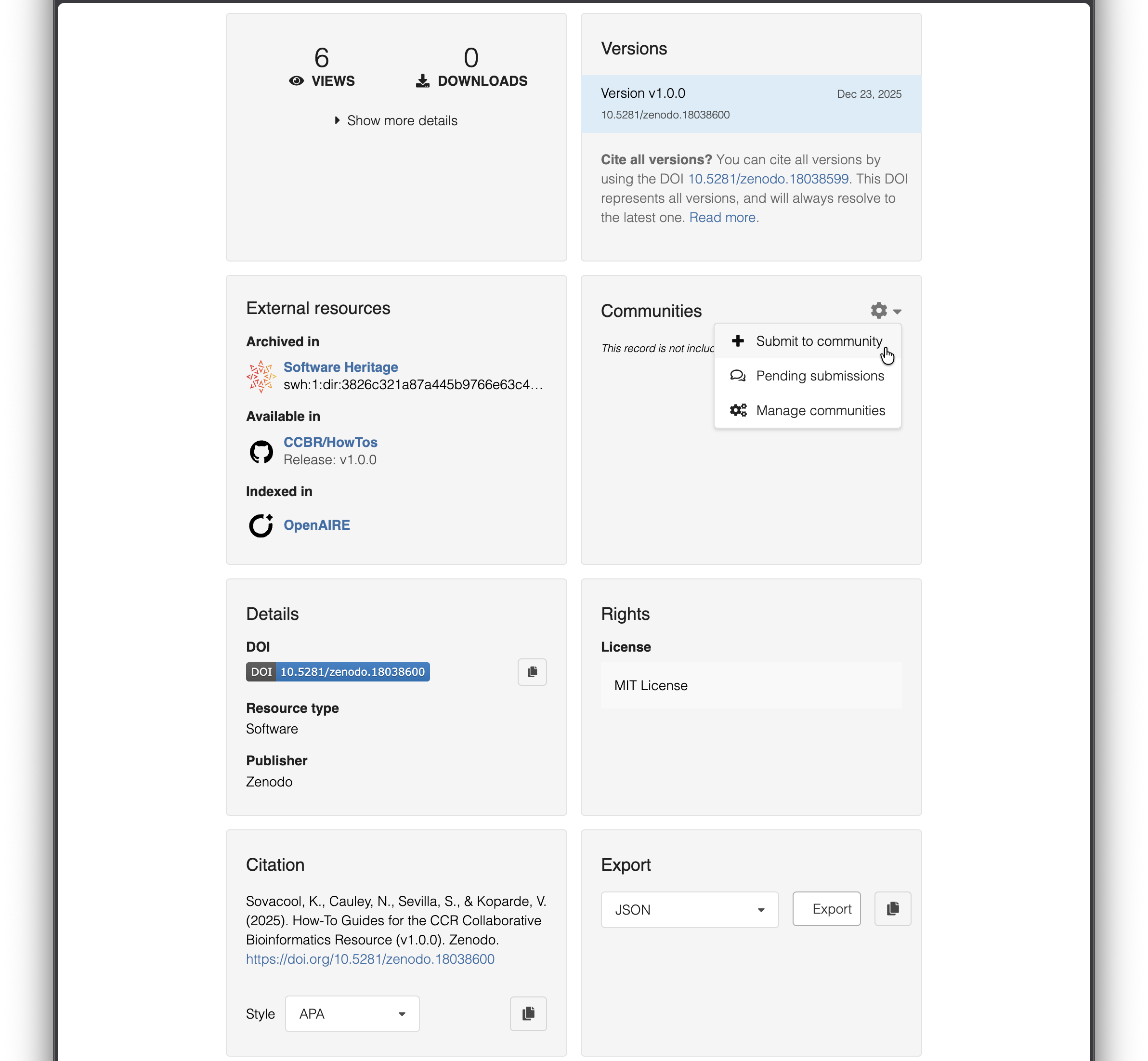
Navigate to your repo’s new record in Zenodo. You can find your Zenodo records at https://zenodo.org/me/uploads. Click on your new record and scroll down to the Communities section toward the bottom of the page, click the gear icon, then click Submit to community and search for “CCBR”.

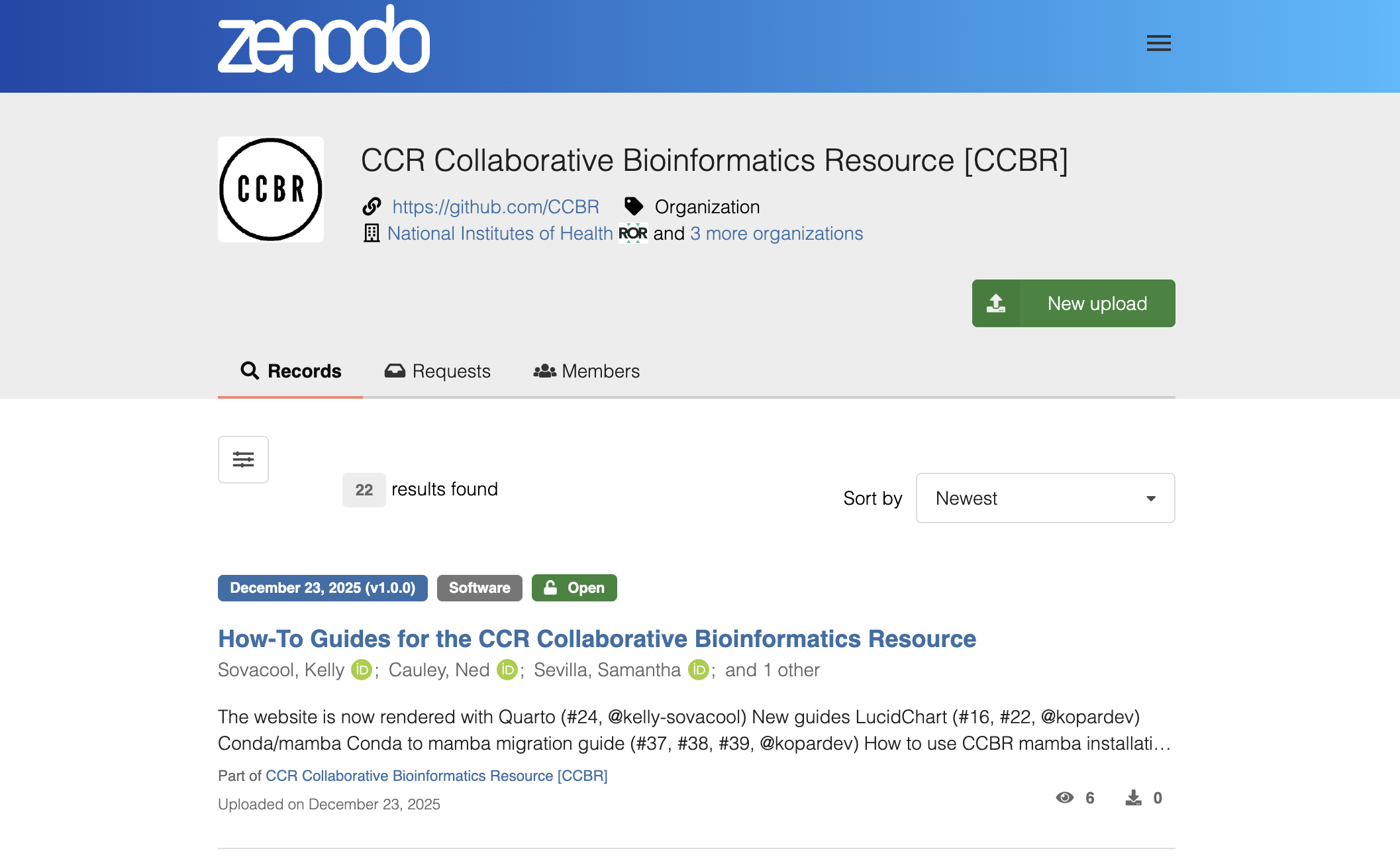
Once your record is accepted by an admin, it will appear on the CCBR community page.
Update Zenodo metadata
If you created a CITATION.cff file, Zenodo will use it to fill out the metadata. Otherwise, you will need to edit the metadata in Zenodo manually.
Navigate to the record in Zenodo and click Manage record > edit. Update any metadata information as needed such as the title, author names and ORCIDs, etc.
Add DOI, citation to GitHub
Go to the record on Zenodo.
Copy the all-versions DOI.
Return to the GitHub repository and edit the
READMEof the GitHub repo, adding the DOI as a badge.Update the
CITATION.cffwith the new DOI:doi: ALL_VERSIONS_DOI identifiers: - description: "Archived snapshots of all versions" type: doi value: ALL_VERSIONS_DOI(replace both instances of
ALL_VERSIONS_DOIwith the actual DOI from Zenodo)Add a line to your repo’s changelog or news file under the development header to announce the new DOI:
This repo is now archived in Zenodo with a DOI: https://doi.org/ALL_VERSIONS_DOI
Reference link
Use the link for full information, summarized above: https://www.youtube.com/watch?v=A9FGAU9S9Ow
Getting Help
If you run into problems or have any questions, please reach out to Kelly Sovacool.