flowchart LR
    local["GFE or laptop<br/>VS Code + Copilot"] --> headroom["Headroom on GFE or laptop<br/>127.0.0.1:58788"]
    hpc["Biowulf or FRCE<br/>Remote VS Code + Copilot"] --> hpc_port["HPC localhost:58788"]
    hpc_port -->|SSH RemoteForward| headroom
    headroom --> model["Model provider"]
Use Headroom with VS Code on Biowulf
Headroom is a local context-compression layer for AI coding tools. It sits between your coding agent and the model and compresses large tool outputs, logs, file reads, and other context before they reach the LLM. The result is less noise, lower token usage, and often faster responses without changing the underlying code or the answers you get. This is especially helpful in bioinformatics work where sessions can involve large logs, search results, and multi-file analyses.
For more details, see the headroom documentation at https://docs.headroomlabs.ai/docs.
How Headroom works
Headroom runs on your GFE or laptop. Local VS Code connects to it directly; a Remote-SSH session on Biowulf or FRCE reaches the same proxy through SSH port forwarding.
Pick a port for Biowulf
It is important to pick a free remote port on Biowulf that is not already occupied by another process. You can pick a port based on your user ID. Log on to biowulf, and add these lines to your shell profile (~/.bashrc or ~/.zshrc):
export HEADROOM_PORT=$(( 20000 + ($(id -u) % 40000) ))
export HEADROOM_URL="http://127.0.0.1:${HEADROOM_PORT}"
Source the profile, then find out your chosen port with:
echo $HEADROOM_PORTIt will be a 5-digit number that is unique to you based on your user, e.g 58788. Copy the port to your clipboard. Everywhere you see $HEADROOM_PORT or PORT below, replace it with your actual chosen port.
Start headroom on your MacBook
Install uv if you don’t already have it:
wget -qO- https://astral.sh/uv/install.sh | shuv tool install --python 3.14 "headroom-ai[all]"Start the headroom proxy
In a dedicated terminal on your Mac, start the proxy and wrap vscode:
headroom wrap vscode --port $HEADROOM_PORT(Replace $HEADROOM_PORT with the actual port you determined above.)
headroom runs in the foreground. Keep this terminal open while you use Headroom. If you stop the command with Ctrl+C, close the terminal, log out, or restart your Mac, rerun the headroom wrap vscode --port $HEADROOM_PORT command before starting your next VS Code session.
View the headroom dashboard
Try a few prompts in VS Code’s Copilot chat, then check the savings dashboard at:
- http://127.0.0.1:$HEADROOM_PORT/dashboard
- or run
headroom dashboard --port $HEADROOM_PORT
Use the dashboard to confirm that the proxy is active and to inspect the estimated token reduction. The proxy uses port to match the forwarding setup for the Biowulf remote connection.
A working dashboard should show a green Healthy status and populate its request, token-savings, throughput, and performance panels as VS Code’s Copilot sends traffic through the proxy. Your values will differ from this example.
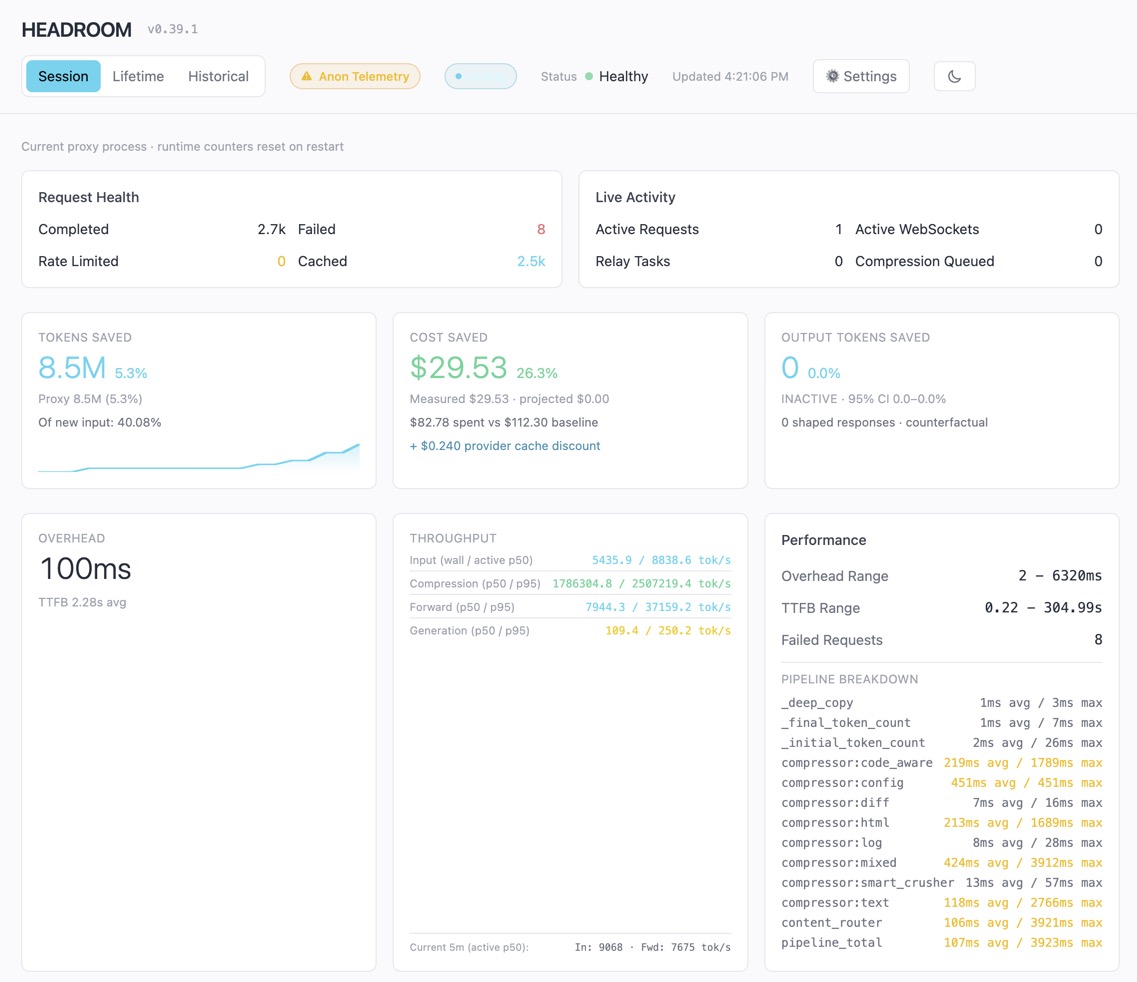
If you only use Copilot on your Mac, this is all you need to do. To make headroom work for your remote VS Code sessions on biowulf, follow the next steps below.
Configure remote forwarding for Biowulf
This setup uses one Headroom proxy running on your Mac. SSH makes that proxy available to the remote VS Code session at 127.0.0.1:$HEADROOM_PORT on Biowulf.
If you already run VS Code on Biowulf compute nodes via SSH (see Biowulf VSCode instructions), You likely already have a cn* block in your Mac’s local ~/.ssh/config that looks something like this:
Host cn*
  User $USERNAME
  ProxyCommand /usr/bin/ssh -o ForwardAgent=yes $USERNAME@biowulf.nih.gov nc -w 120ms %h %p
For Headroom to work over SSH, you’ll need to add two lines:
Host cn*
  User $USERNAME
  ProxyCommand /usr/bin/ssh -o ForwardAgent=yes $USERNAME@biowulf.nih.gov nc -w 120ms %h %p
  RemoteForward 127.0.0.1:58788 127.0.0.1:58788
  ExitOnForwardFailure yes
(Replace 58788 with your actual $HEADROOM_PORT chosen above.)
If you haven’t already, start the proxy in its dedicated terminal on your Mac before connecting to Biowulf. Then, connect to the host from VS Code through the usual command: F1F1 - Remote-SSH Connect to Host and type cnXXXX (replace XXXX with the compute node number for your interactive job). Do not start another Headroom proxy on the compute node; the SSH RemoteForward connects the remote port to the proxy already running on your Mac. Try prompting Copilot in your VS Code session attached to Biowulf and observe the total savings increase in your headroom dashboard.
Benefits
Headroom is a good choice when you are running long AI-assisted coding sessions, reading large log files, or exploring large codebases. It is not a replacement for good prompt design or careful validation, but it is a useful way to keep Copilot and other agent workflows efficient and cost-aware.
Troubleshooting
If VS Code cannot connect, run ssh -vv cnXXXX from your Mac and look for remote port forwarding failed listen port PORT. This indicates that PORT is already in use on the compute node. To check, replace PORT with the reported port and run:
On your Mac, check that Headroom is listening, then open a shell on the compute node with forwarding disabled:
lsof -nP -iTCP:PORT -sTCP:LISTEN
ssh -o ClearAllForwardings=yes cnXXXX
On the compute node, check for a listener on the port and inspect your SSH processes:
ss -ltnp | grep ':PORT '
pgrep -u "$USER" -af sshd
exit
No output from lsof means the proxy is not listening on your Mac. A line from ss means a process is listening on the compute-node port; it may show the process. Choose another unused port if needed, update the port in your shell profile and RemoteForward, restart headroom wrap vscode --port PORT on your Mac, and reconnect.