Publishing Shiny Apps to the Development Server
This page will cover publishing to the development (dev) server, but the steps for publishing will be similar for the internal production server, with caveats listed in the Publishing to Production documentation.
CBIIT offers an SOP for publishing as well, found in this document.
Access to the servers
To publish a shiny app on the dev server, you will need publisher access. To get this access, contact George Zaki (mailto:george.zaki@nih.gov) with a description of the app which includes:
- What data does the shiny app use and how large is the data?
- Where is the data stored?
- How will the data be manipulated by the app i.e. read, or read and write?
- What is an estimate of how much computational resources the app uses to run? For example, what features of the app take the longest to run and how long does it take when run locally?
Provide this information in the email to George Zaki when asking for publishing access to the dev server.
As part of receiving access to the dev server, review the following demos of NCI’s posit connect servers:
RStudio Connect Refresher demo-20210930_150214-Meeting Recording.mp4
- ~45 minute demo plus ~15 min audience questions
- Content: Publishing to a Posit Connect Server, overview of an example shiny app, overview of settings for app share settings
RStudio Connect Refresher Demo 2-20211021_150326-Meeting Recording.mp4
- ~30 minute demo
- Content: Jupyter Notebook on Rstudio Workbench, Plumber API with Rstudio Workbench
Publishing an App to the Dev Server
Once the shiny example app has been cloned and run locally.
Add an Account for Publishing
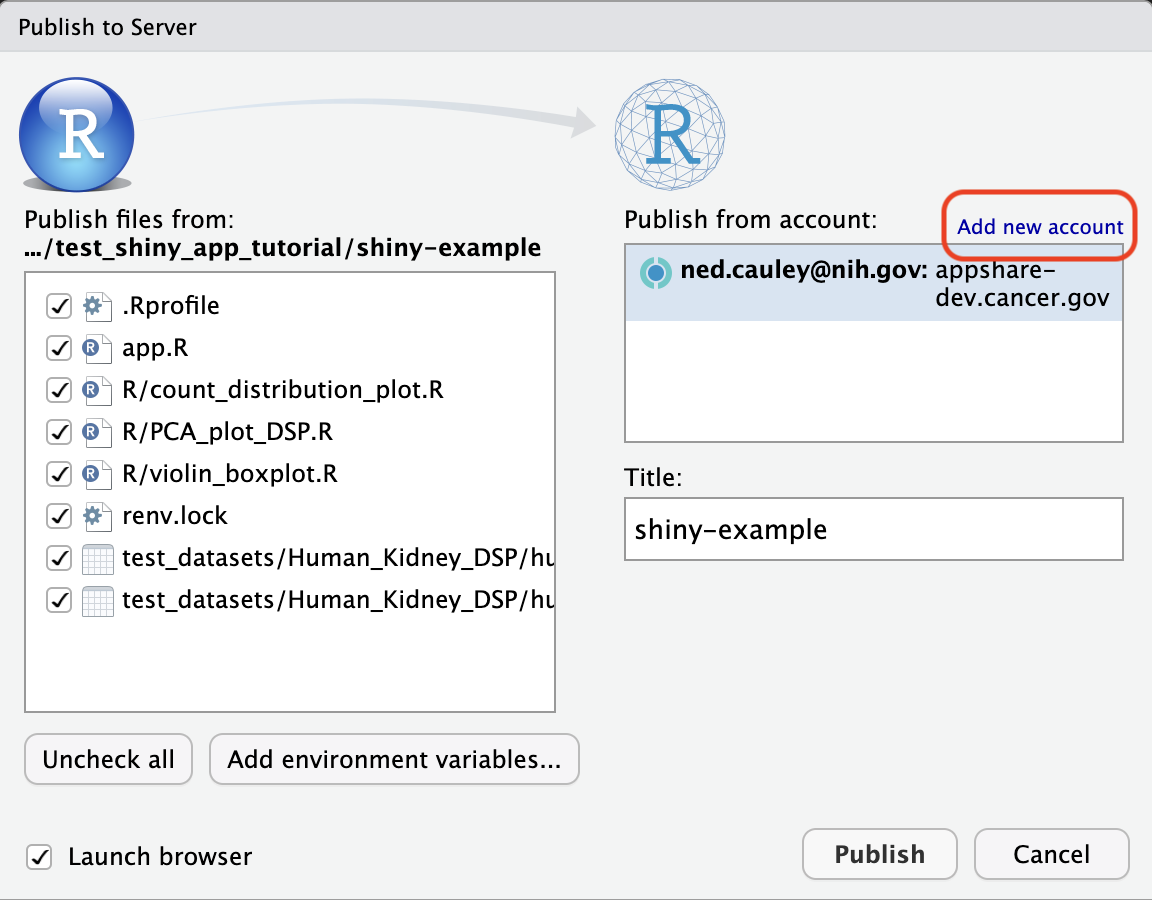
Select the “Publish” button to bring up the Publish to Server window. Select “Add new account” in the “Publish from account:” section.
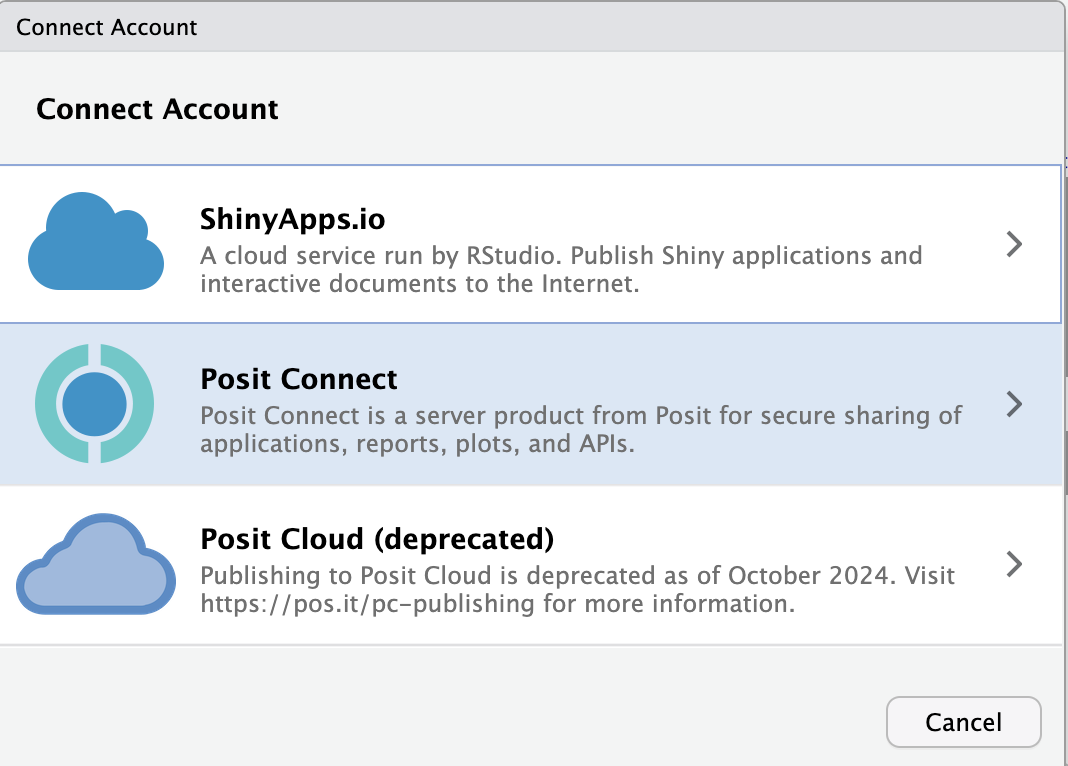
Next choose the “Posit Connect” option and in the next window enter the URL for the NCI Posit Connect dev server.
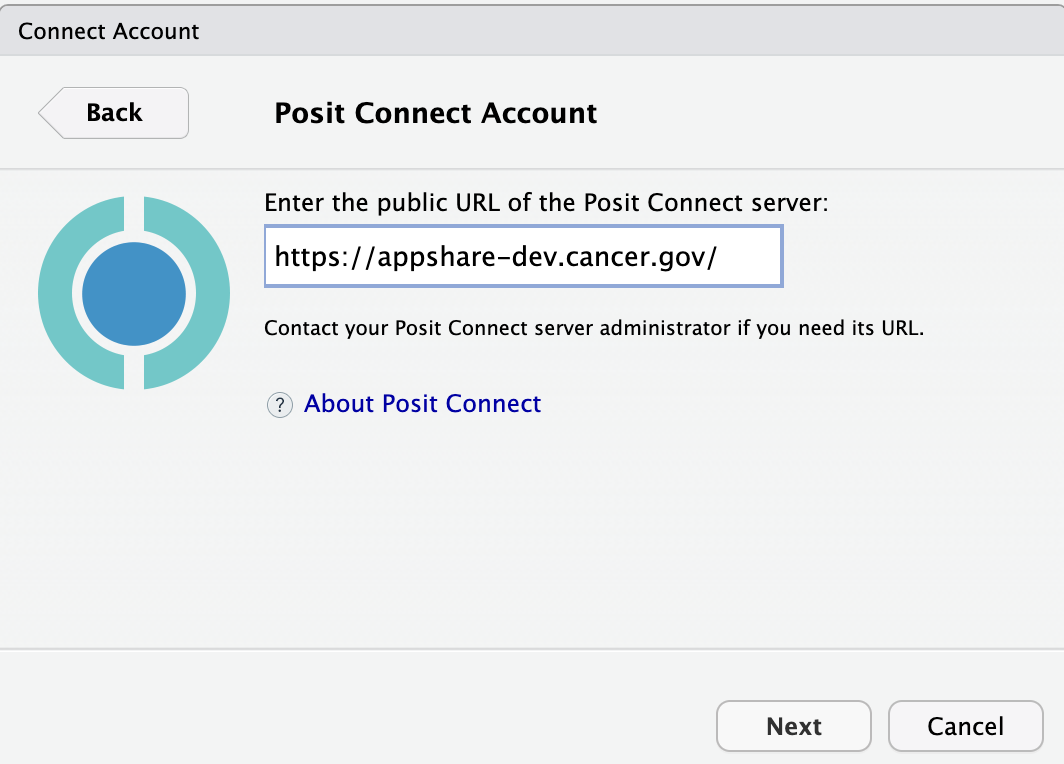
Upon clicking the “Next” button, a browser will open and redirect you to the Posit Connect Dev server. You will receive a prompt asking you to connect to R.

Choose “Connect” and then return to the Rstudio window. You will then have another prompt to finalize the connection. Choose “Connect Account”.
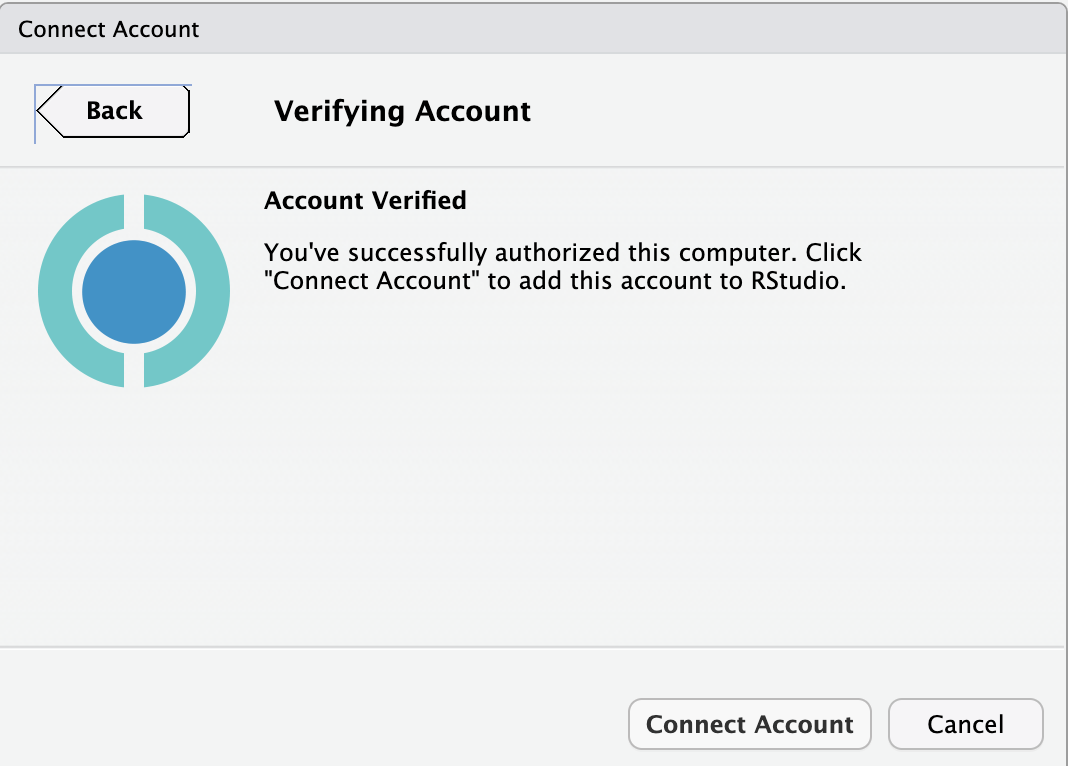
You will now have the Posit Connect dev server as an option when choosing the “Publish” button.
Publish the example shiny app
Now that your account is connected. Click the “Publish” button again, and you will now see that your connected account is listed. Rename your app and then choose “Publish”.
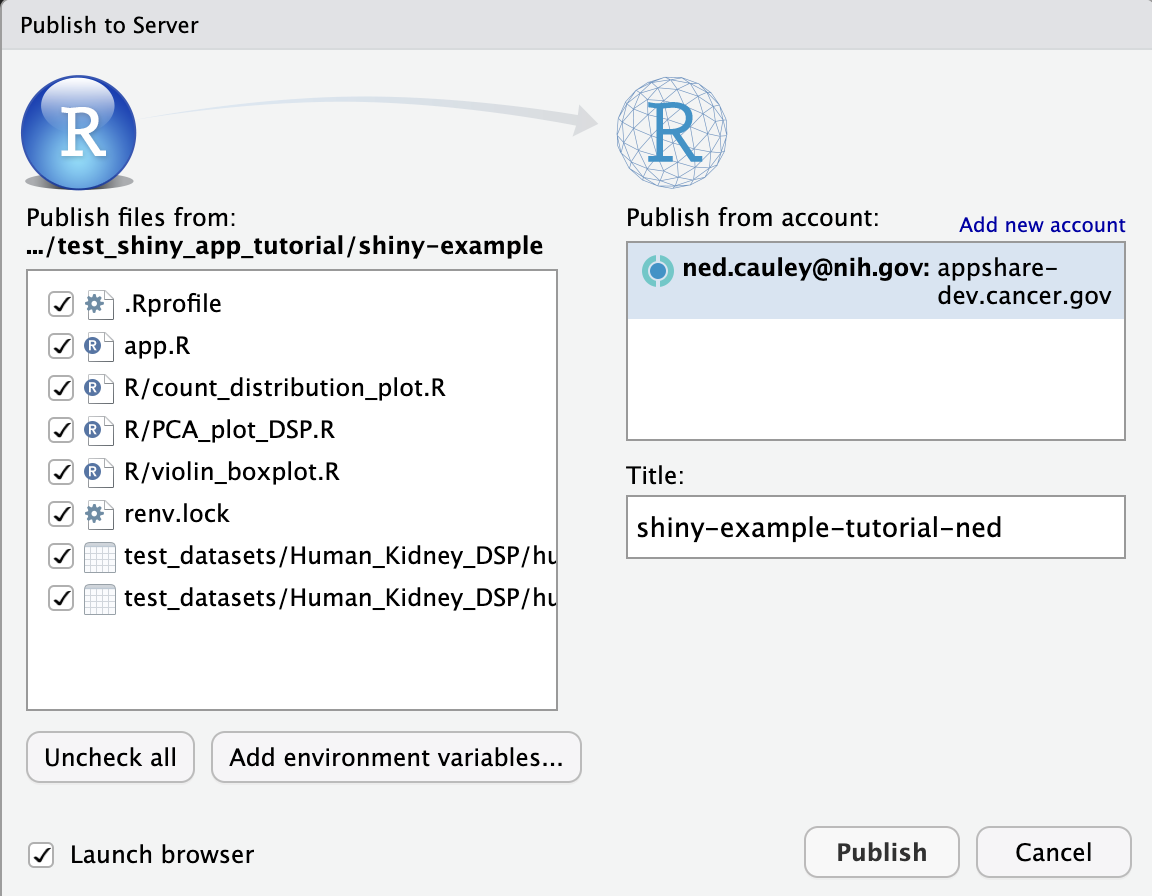
A log of the app building will begin in Rstudio, including installation of all libraries listed in the renv.lock file. When the app is built, a browser will be opened with your published shiny app on the Posit Connect dev server.
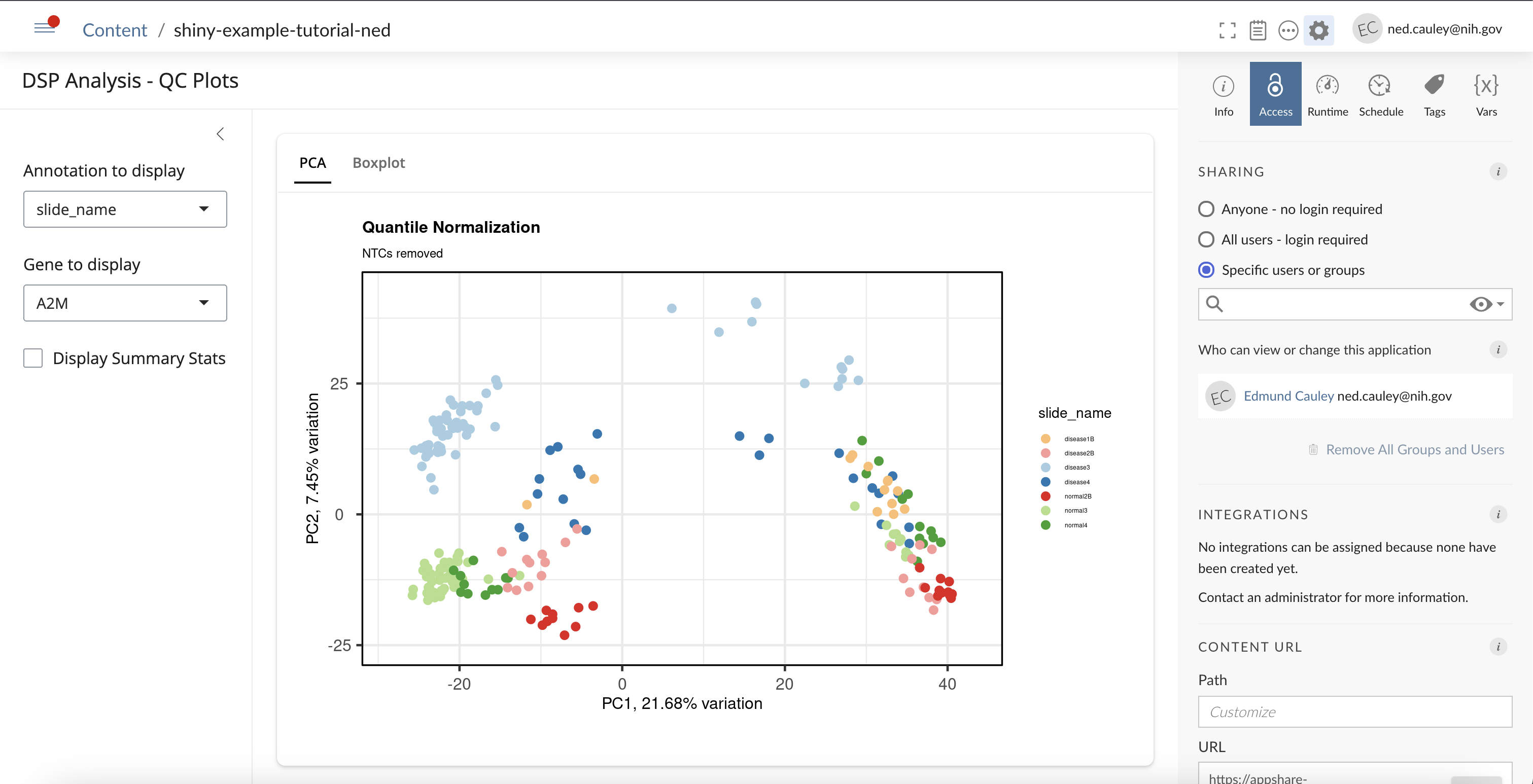
You have now successfully deployed the example shiny app to the Posit Connect dev server!
Republishing
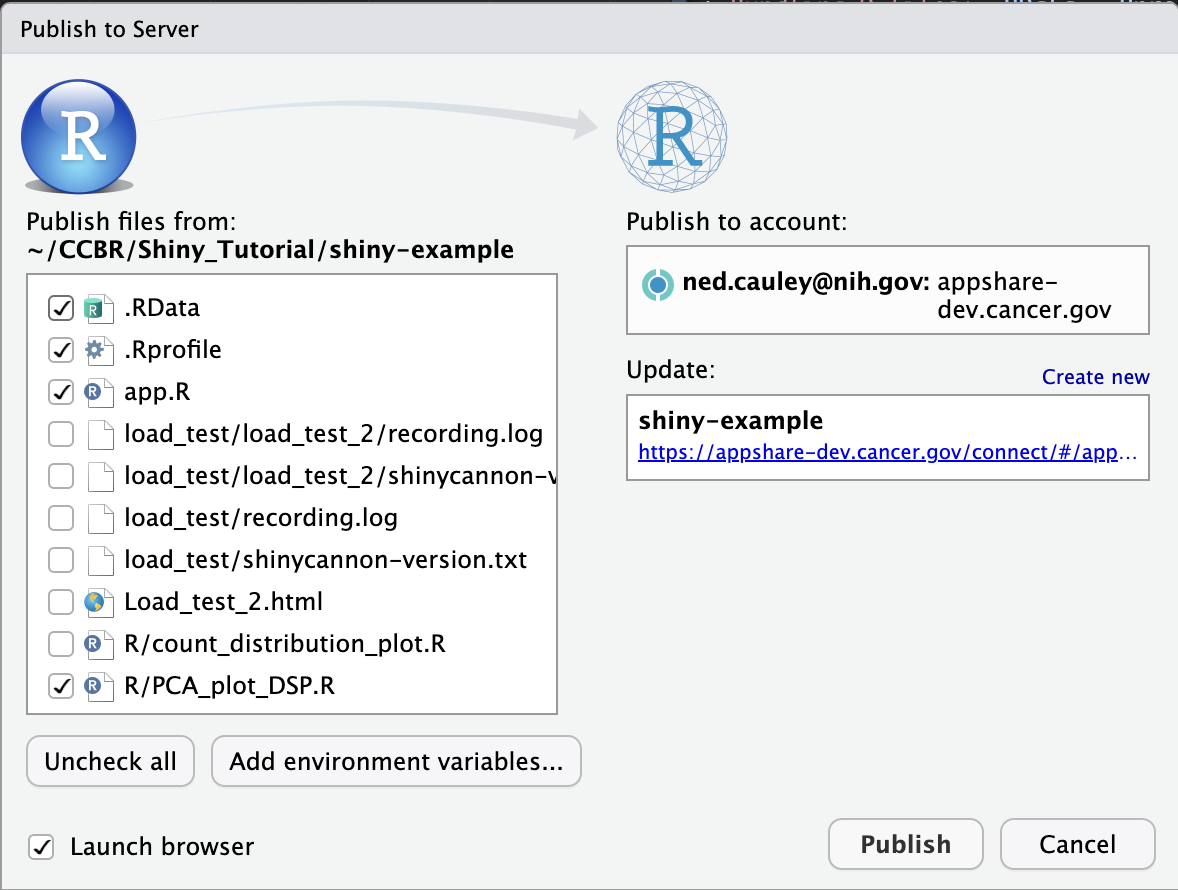
The options for publishing will look slightly different if an app has already been published and there is local memory of the deployed apps. For example, if you successfully deploy the shiny example app for the first time to the internal dev server, the “Publish” button will now say “Republish”. A drop down for Replublish allows republishing to a specific location if the app was deployed to multiple destinations, as well as adding a new destination.
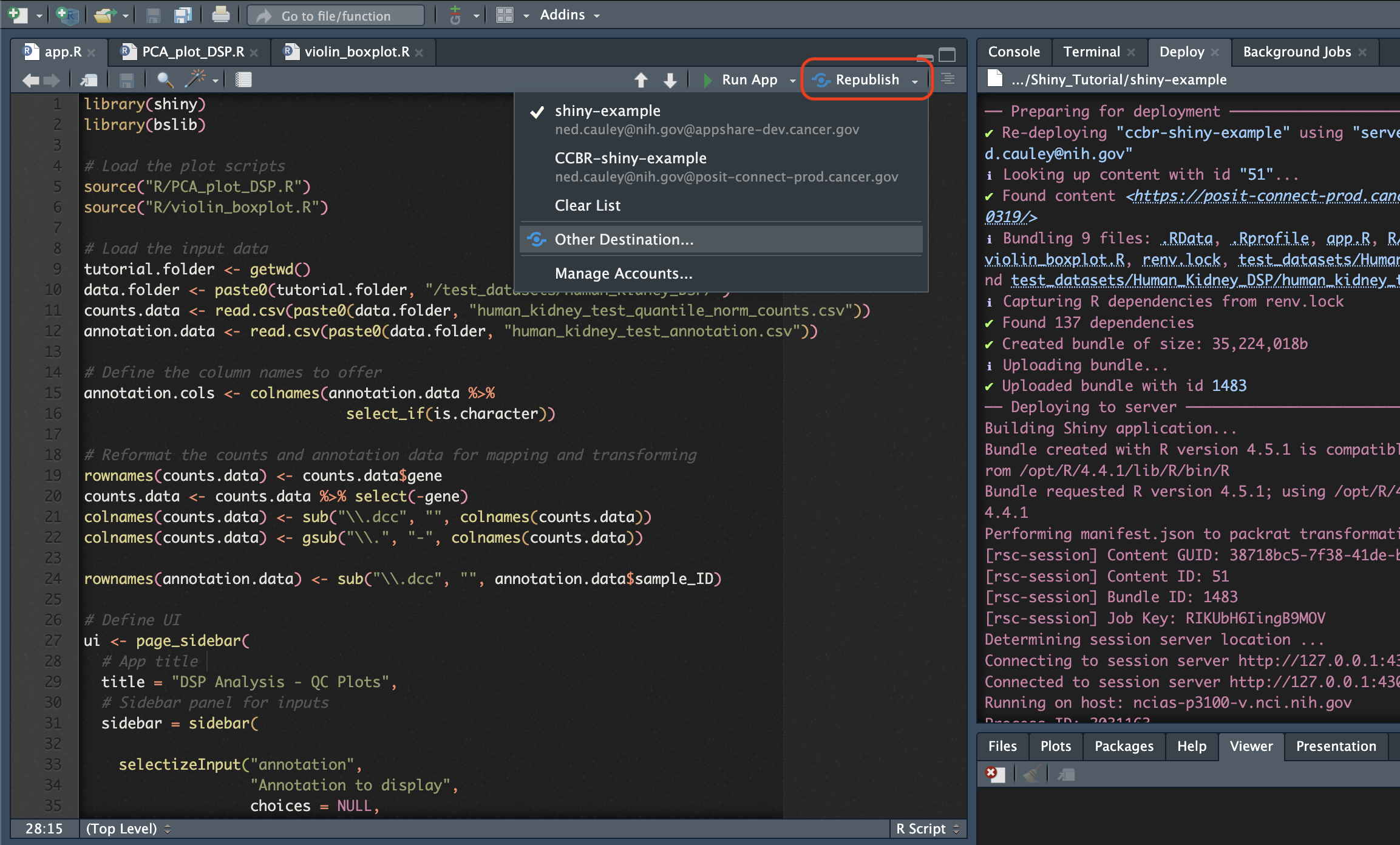
Choosing Republish or choosing a specific location gives a prompt specific to that location.
While choosing “Other Destination…” from the drop down gives a prompt which allows adding new destinations.
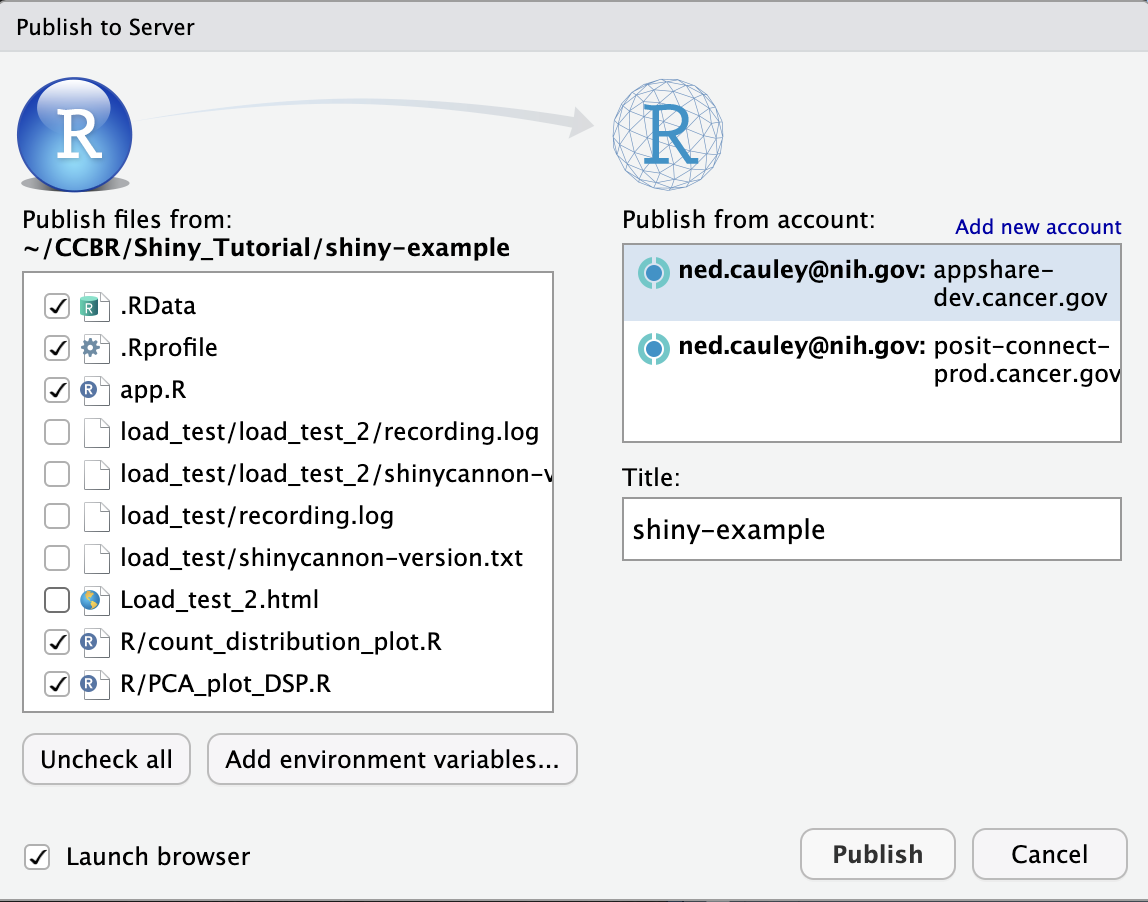
For details on deploying and publishing the app to the NCI production Posit Connect servers, proceed to the Publishing documentation.
Additional Information for Publishing
Data Size Limits
When a Shiny app is published, the data used in the app will account for the majority of the total size of the app. For any app with a total data size greater than 3 GB, contact George Zaki for further guidance. Data may need to be stored on the server or in a separate location and not included in the published Shiny app bundle.
R Environment
Include a renv.lock file when publishing to control the exact versions of dependencies used for a Shiny app. For more information on updating a renv.lock file, please refer to the renv documentation.
rsconnect R Package
An alternative method to publish a Shiny app from the command line is the rsconnect R package. Additional information can be found on the rsconnect doc page.